
How to Track Clicks on a Short URL (Step-by-Step Guide for 2026)
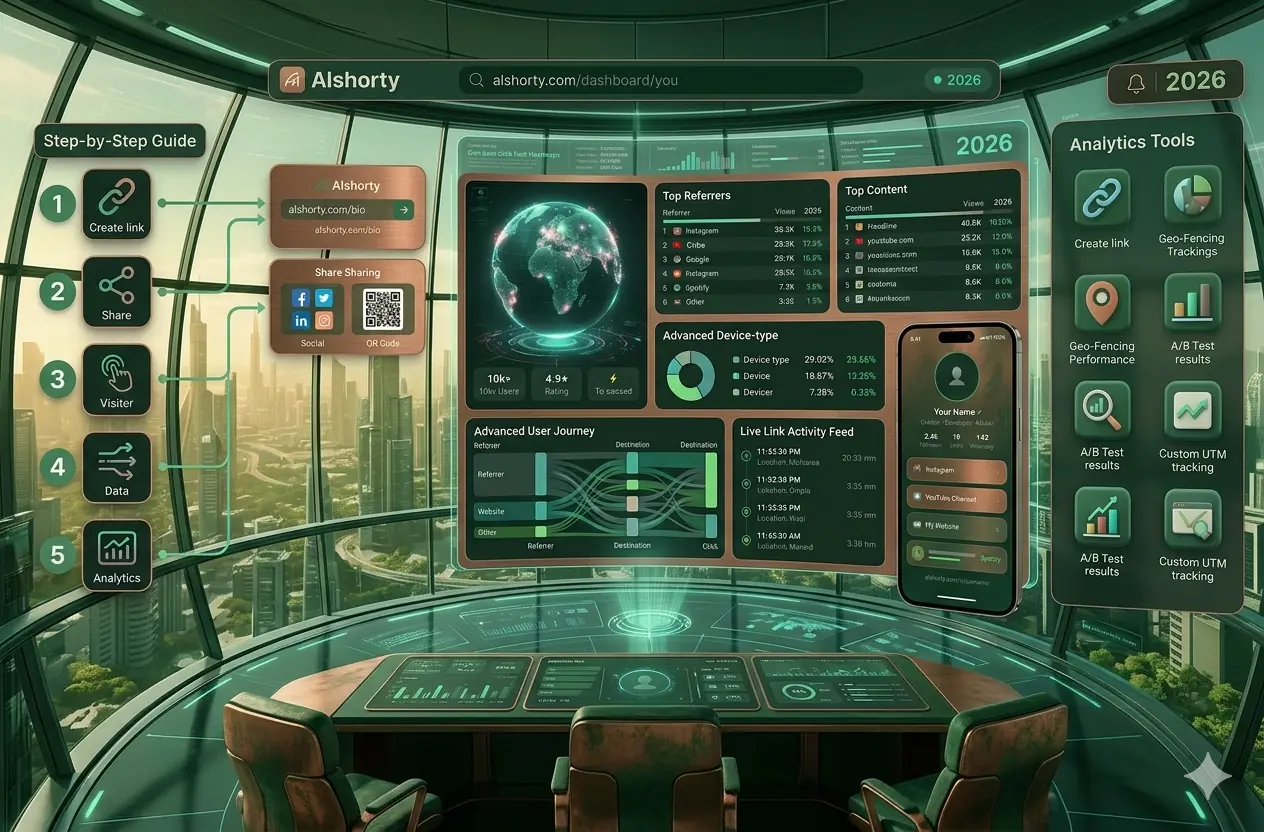
Learn exactly how to track clicks on any short URL — including country, device, referrer, and UTM data. A practical guide for marketers, creators, and developers using link analytics in 2026.
Muqira
May 2026 · Updated regularly · 10 min read
What does "tracking clicks on a short URL" actually mean?
When someone clicks your short link, three things happen in milliseconds:
- Their browser sends a request to the shortener's server
- The server records the click — along with metadata like country, device, browser, and referrer
- The server redirects the browser to your destination URL
That metadata from step 2 is your analytics.
Good URL shorteners give you that data in a clean dashboard. Bad ones just do the redirect and throw the data away.
This guide shows you exactly how to set up click tracking, what data you can expect, and how to use UTM parameters to connect your short links to Google Analytics campaigns.
Step 1: Create a short link with analytics enabled
Not all short links track analytics. Links created by tools like TinyURL's free plan, or by anonymous users on some platforms, may not record any data beyond click counts.
To get full analytics, you need a short link created in an account on a platform that tracks them.
Here's how to do it on Alshorty:
- Go to alshorty.com and sign up free (Google, Microsoft, or email magic link — no password required)
- Paste your long URL into the shortener
- Click Shorten — you get a short link like
alshorty.com/link/abc123 - Every click on that link is now tracked automatically
No extra setup. No tracking pixels to install. No code.
Step 2: Find your analytics dashboard
After creating a link, open your dashboard.
You'll see all your links listed with their total click counts. To dig into the analytics for a specific link:
- Find the link in your list
- Click the analytics icon (bar chart) on that row
- The analytics panel slides open on the right
The panel has five tabs: Overview, Geography, Devices, Referrers, and UTM.
Step 3: Understand what you're looking at
Overview tab
The Overview tab shows:
- Total clicks for the selected period (7, 14, 30, 60, or 90 days)
- Previous period comparison — how does this period compare to the previous one of the same length?
- Daily click chart — an area chart showing clicks per day with a date tooltip on hover
- Top links — if you're looking at aggregate analytics, which links drove the most clicks?
The "vs previous period" toggle adds a dashed overlay line to the chart so you can visually see whether traffic is growing or declining.
Geography tab
The Geography tab shows an interactive world map.
Countries are shaded by click intensity — darker means more clicks. Hover over any country to see the exact name and click count.
Below the map is a ranked list of countries with click counts.
This is useful for understanding:
- Whether your content is reaching the audience you intended
- Which markets are growing organically
- Whether a campaign targeted at a specific region is working
Devices tab
The Devices tab breaks down clicks by:
- Device type — mobile, desktop, tablet
- OS — iOS, Android, Windows, macOS, Linux
- Browser — Chrome, Safari, Firefox, Edge (shown as a pie chart)
The most common use of device data: optimise your landing page for the device your audience actually uses. If 70% of your clicks are on mobile, your destination page needs to work flawlessly on mobile.
Referrers tab
The Referrers tab shows which domains are sending you traffic.
Common referrers you'll see:
Direct— someone typed the URL or opened it from a saved bookmark/notet.co— Twitter/Xl.instagram.com— Instagramwa.meor blank — WhatsApp (often appears as direct)mail.google.com— Gmail
Referrer data tells you which platform is actually driving your traffic — even if you're sharing the same link everywhere.
UTM tab
The UTM tab groups clicks by UTM source, medium, and campaign.
This only shows data if your links have UTM parameters attached. More on that in Step 4.
Step 4: Add UTM parameters for campaign tracking
UTM parameters are tags you add to your URL that tell Google Analytics (and your short link analytics) exactly where a click came from.
A UTM-tagged link looks like this:
https://yoursite.com/product?utm_source=newsletter&utm_medium=email&utm_campaign=may-launchWhen you shorten a UTM-tagged URL, both your short link analytics and Google Analytics capture the campaign information.
How to build UTM links in Alshorty
- Open the shortener and paste your destination URL
- Click Advanced options
- Fill in the UTM fields: Source, Medium, Campaign (and optionally Content and Term)
- The UTM parameters are appended to your destination URL automatically
- Shorten — your short link now tracks UTM data
You don't need to manually edit query strings. The UTM builder generates them correctly.
What UTM parameters to use
| Parameter | What it tracks | Example |
|---|---|---|
utm_source |
Which platform/tool sent the traffic | newsletter, instagram, whatsapp |
utm_medium |
The type of marketing channel | email, social, sms, bio |
utm_campaign |
The specific campaign or promotion | may-launch, black-friday |
utm_content |
Which specific ad or link variant | banner-a, cta-button |
Step 5: Export and act on your data
Once you have data, the most useful thing you can do is export it.
Alshorty Pro users can export all analytics data as CSV from the dashboard header. The export includes:
- Date
- Click count
- Country
- Device type
- Browser
- OS
- Referrer domain
Bring it into Google Sheets or Excel to build custom charts, combine with conversion data, or share with a client.
Step 6: Share your stats without requiring a login
Sometimes you need to show click data to someone who doesn't have access to your dashboard — a client, a partner, or a collaborator.
Every Alshorty link has a public stats page at:
alshorty.com/stats/your-link-codeThis page shows total clicks and the daily chart. No login required to view it. Just copy the URL and send it.
Common questions about link click tracking
Does click tracking slow down the redirect?
No. Analytics are recorded asynchronously — the redirect happens at full speed, and the data is written in the background. Users experience no perceptible delay from tracking.
Can I track clicks on links I've already created?
Yes, as long as those links were created in an account. Alshorty tracks all clicks on all links created while logged in, starting from the moment of creation. Historical data appears in your dashboard immediately.
What about ad blockers?
Most ad blockers block third-party tracking scripts (like Google Analytics). But URL shortener analytics are different: the tracking happens server-side, at the redirect step — before the user's browser even loads the destination page. Ad blockers cannot block this.
Can I track clicks from WhatsApp?
WhatsApp often strips referrer headers, so clicks from WhatsApp may appear as "Direct" in referrer data. UTM parameters are not affected by this — they travel in the destination URL, not the request headers. To properly attribute WhatsApp traffic, use UTM parameters with utm_source=whatsapp.
Is this GDPR compliant?
Alshorty analytics do not store personally identifiable information. Country data is derived from IP address but the IP itself is not stored. Device and browser data comes from the user-agent string, which is also not stored. This approach is consistent with GDPR's data minimisation principle, though you should review this against your specific compliance requirements.
Quick reference: what you can track
| Data point | Free plan | Pro plan |
|---|---|---|
| Total click count | ✅ Yes (7-day history) | ✅ Yes (90-day history) |
| Real-time updates | ✅ Yes | ✅ Yes |
| Shareable stats page | ✅ Yes | ✅ Yes |
| Country breakdown | ❌ Pro only | ✅ Yes (world map) |
| Device / OS / browser | ❌ Pro only | ✅ Yes |
| Referrer tracking | ❌ Pro only | ✅ Yes |
| UTM analytics | ❌ Pro only | ✅ Yes (3 dimensions) |
| Period comparison | ❌ Pro only | ✅ Yes |
| CSV export | ❌ Pro only | ✅ Yes |
Start tracking your links — free
Create a free account. Shorten a link. Watch your analytics appear in real time.
Get started free →Frequently asked questions
Can I track clicks without an account?
Not on Alshorty — click tracking requires a link created while logged in. Anonymous or unauthenticated links may only get a total click count, without country, device, or referrer data.
How do I export click data?
Pro users can export all analytics as a CSV directly from the dashboard header, including date, click count, country, device type, browser, OS, and referrer domain for each link.
Does click tracking slow down the redirect?
No — analytics are recorded asynchronously in the background. The redirect itself happens at full speed with no perceptible delay from tracking.
Can ad blockers block link click tracking?
No. Most ad blockers block third-party client-side tracking scripts, but URL shortener analytics happen server-side at the redirect step, before the destination page ever loads — so ad blockers cannot block this.
This guide is part of the Alshorty blog, where we cover URL shortening, Link-in-Bio pages, SmartPages, analytics, QR codes, and marketing strategies. Explore our free tools: UTM Builder, QR Generator, Link Checker, Link-in-Bio builder, and SmartPages builder.
Try Alshorty for free
Shorten URLs, track clicks, generate QR codes, and create a free Link-in-Bio page — no account required.